
Guide / Screenshot guide
How to withdraw from CopyX to TAG Wallet
Open your Sonic strategy in Follower Hub, choose Withdraw, select Profits or Deposit and enter an available amount. This moves money to TAG Wallet, not to an external wallet.
Updated 4 November 2026 · Screenshots from our interactive demo, with fictional account data. Use the options and conditions shown in your own account.
Before you start: Have an active Sonic account with an amount available to withdraw.
Step 01
Find your Sonic account
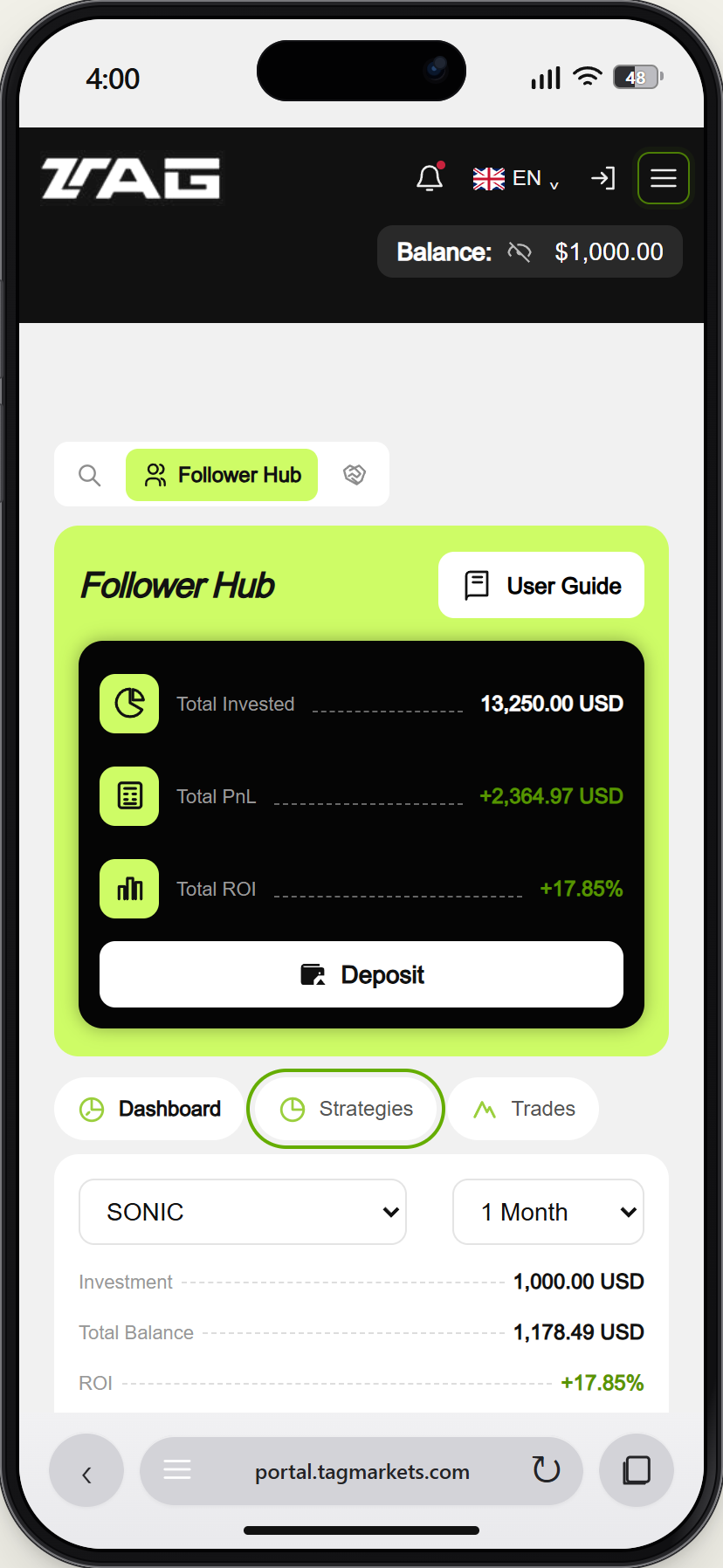
From TAG Markets, open Menu → CopyX → Follower Hub → Strategies. Find the Sonic account you want to use.
Demo example · Enlarge screenshot Step 02
Choose what to withdraw
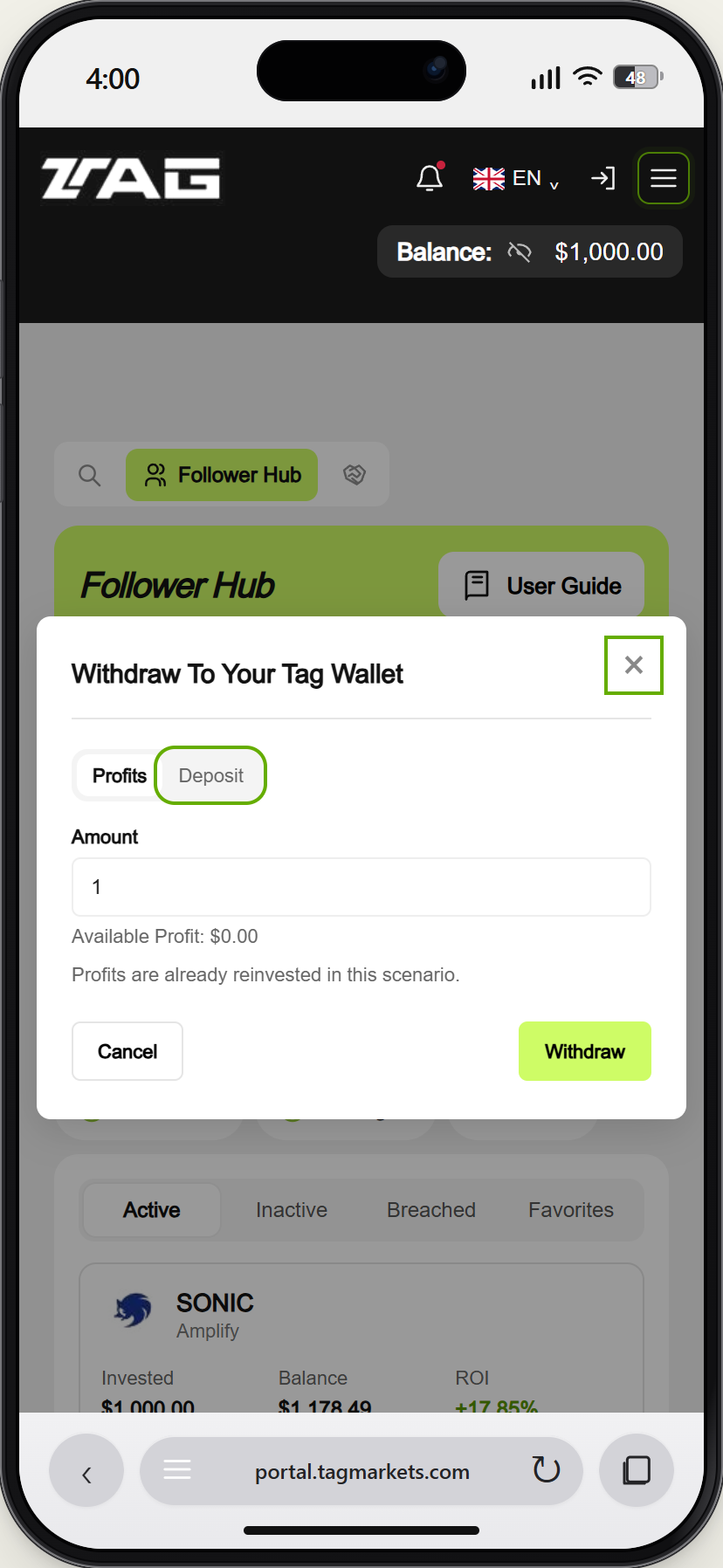
Select Withdraw. Choose Profits or Deposit and read the available amount. A deposit may show an eligibility timer; use the status in your own account.
Demo example · Enlarge screenshot Step 03
Enter the amount and review
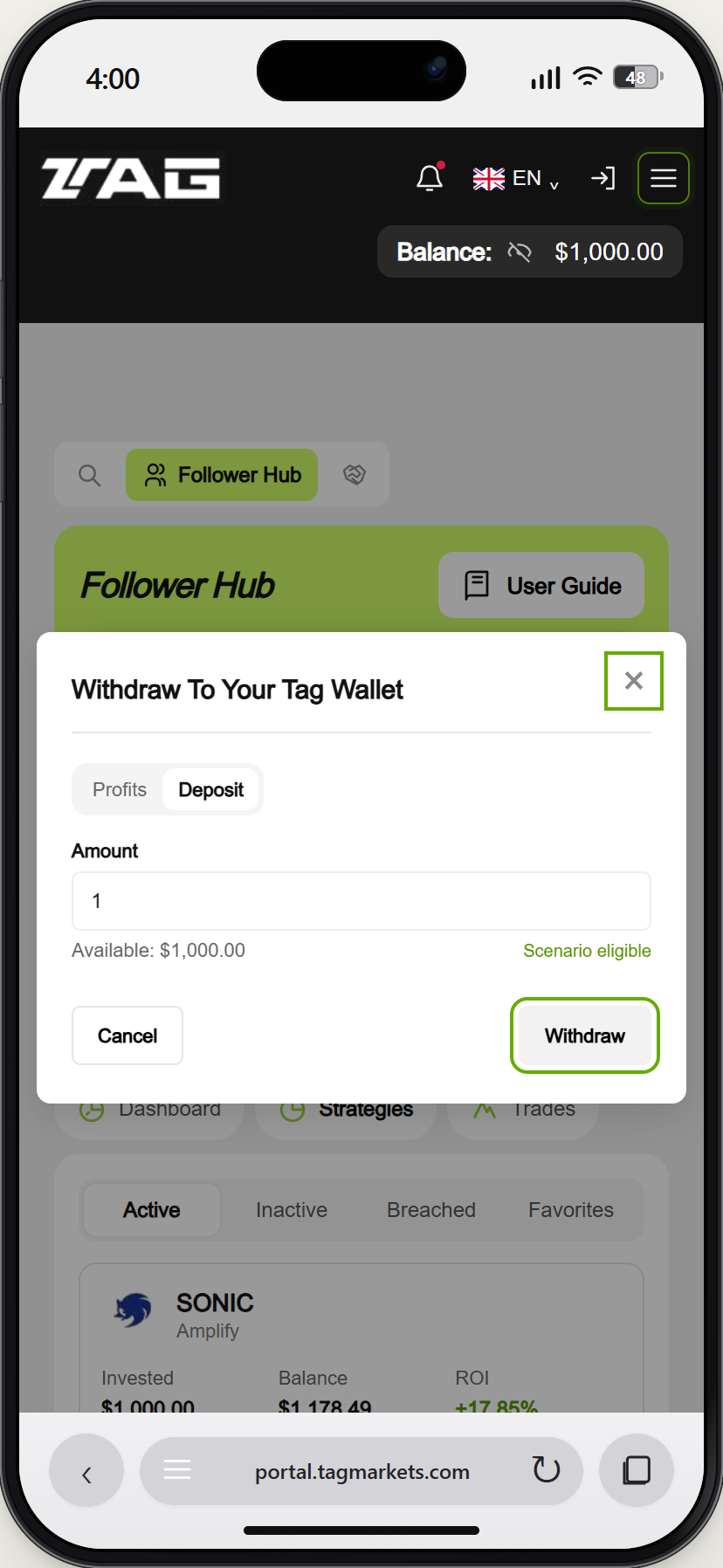
Enter no more than the available amount. Review the destination and choose Withdraw when ready. The destination here is TAG Wallet; an external payout is a separate step.
Demo example · Enlarge screenshot
How do I withdraw money from CopyX to my TAG Wallet?
Open your Sonic strategy in Follower Hub, choose Withdraw, select Profits or Deposit and enter an available amount. This moves money to TAG Wallet, not to an external wallet.