
Guide / Screenshot guide
How to connect a TAG Markets account to MT5
Find your strategy account credentials in TAG Markets, then add the account in MT5 using the account number, investor password and server shown for that account. The demo illustrates T.M. Financials Ltd and TMFinancials-Server.
Updated 4 November 2026 · Screenshots from our interactive demo, with fictional account data. Use the options and conditions shown in your own account.
Before you start: Have MT5 installed and access to the credentials for the strategy account you want to view.
Step 01
Find your strategy credentials
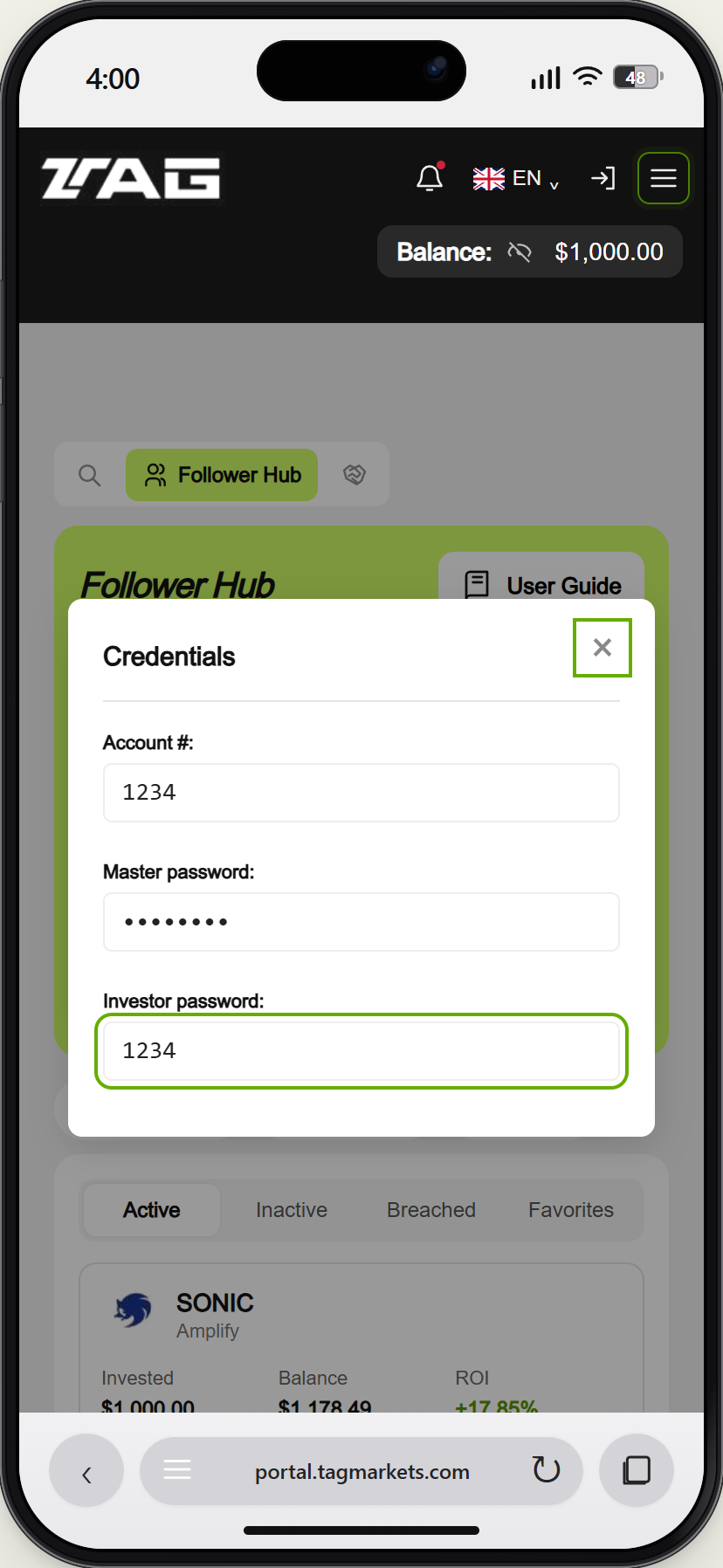
Open Menu → CopyX → Follower Hub → Strategies. Select the eye icon on the correct account. Account # is the MT5 login; use Investor password for viewing, not the Master password. The pictured credentials are fictional.
Demo example · Enlarge screenshot Step 02
Find the broker in MT5
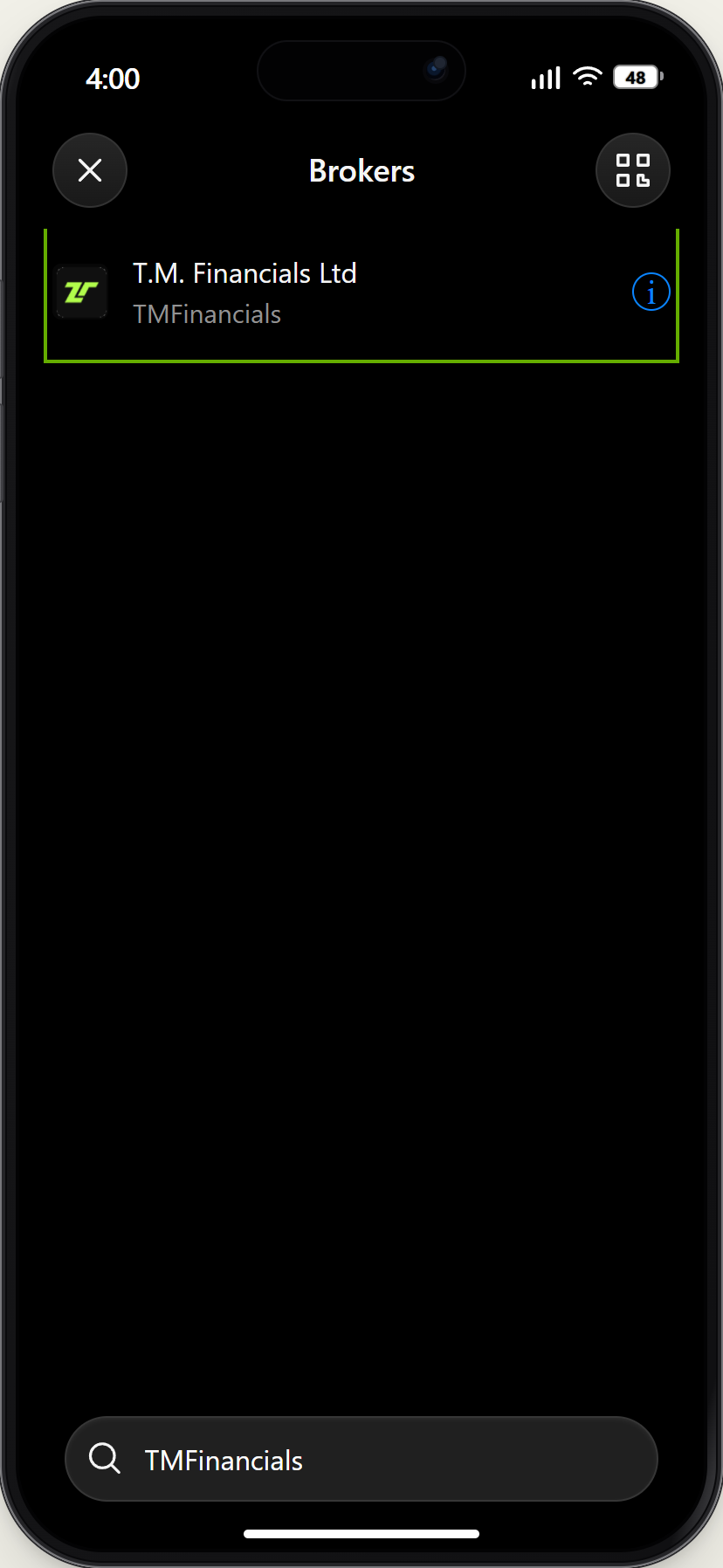
Open MT5 and find the broker listed for your account. The demo searches for TMFinancials and selects T.M. Financials Ltd.
Demo example · Enlarge screenshot Step 03
Enter your own login details
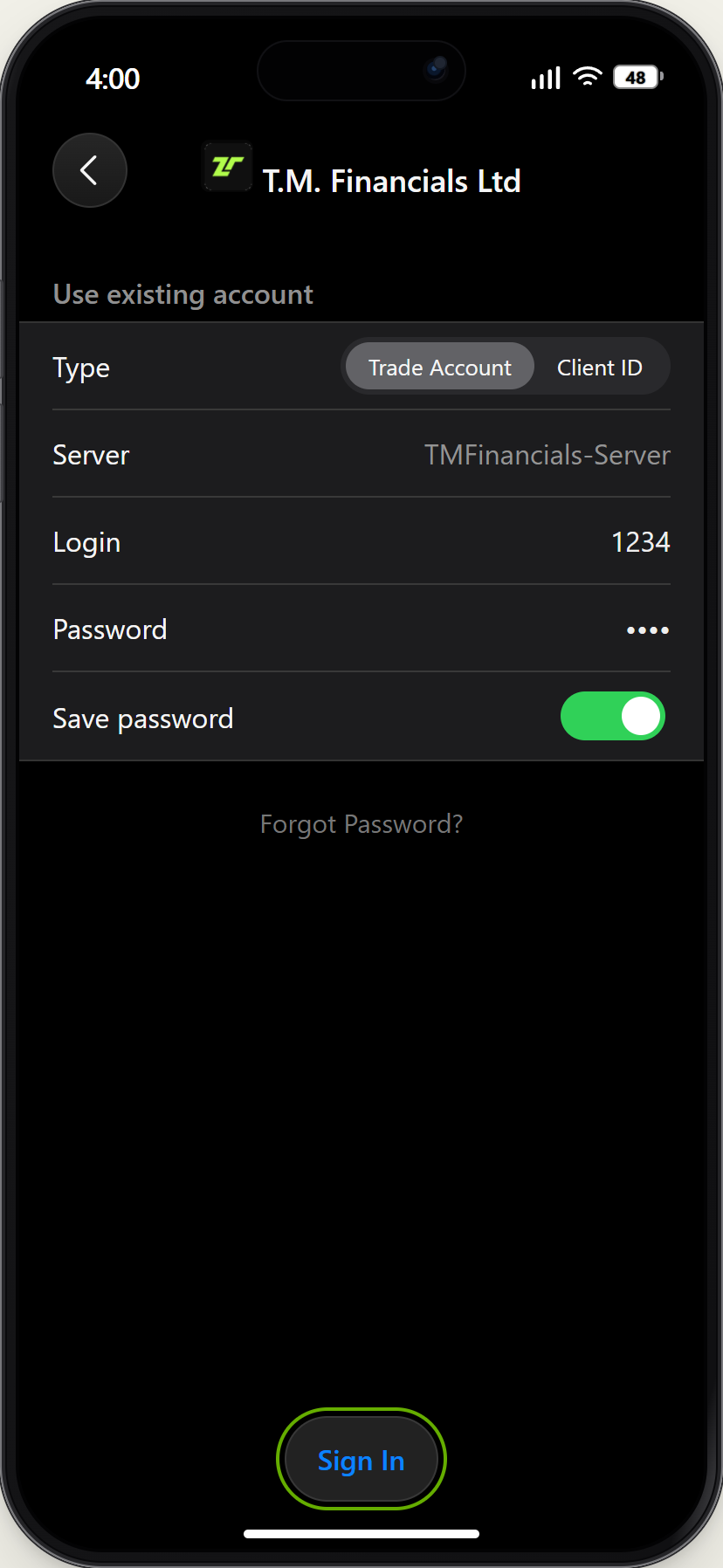
Enter the strategy Account # and its Investor password. Check the server against your account credentials before choosing Sign In. Do not use the demo login or password for your real account.
Demo example · Enlarge screenshot Step 04
Check the connected account
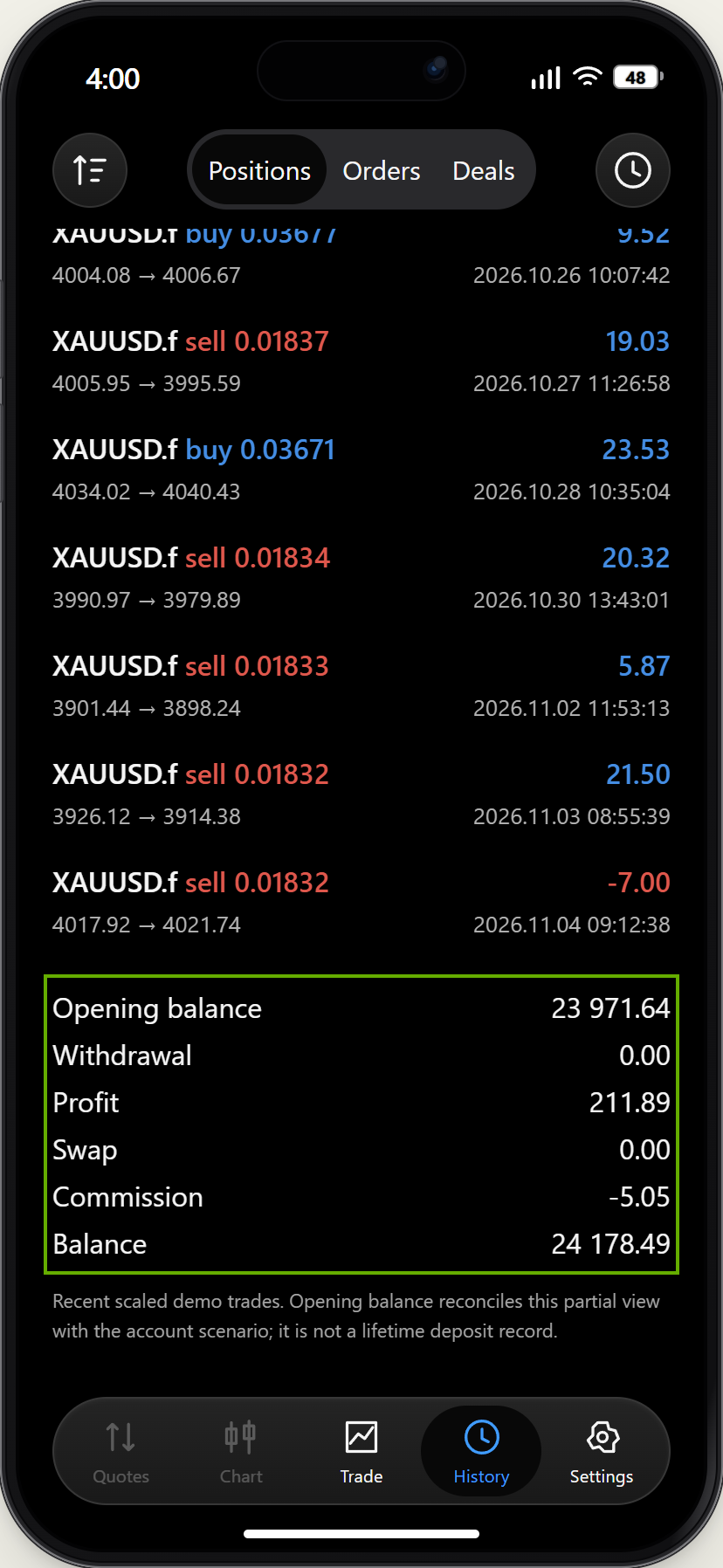
Check the account number in Settings and open History to view closed trades. This tutorial uses investor access for read-only viewing.
Demo example · Enlarge screenshot
How do I connect my TAG Markets account to MT5?
Find your strategy account credentials in TAG Markets, then add the account in MT5 using the account number, investor password and server shown for that account. The demo illustrates T.M. Financials Ltd and TMFinancials-Server.