
Guide / Screenshot guide
How to reinvest Sonic profits on CopyX
In Follower Hub → Strategies, choose Reinvest on Sonic, check Available to Reinvest, enter an amount and review Upgrade. Reinvesting uses available profits rather than new funds from TAG Wallet.
Updated 4 November 2026 · Screenshots from our interactive demo, with fictional account data. Use the options and conditions shown in your own account.
Before you start: Have profits available to reinvest on your Sonic account.
Step 01
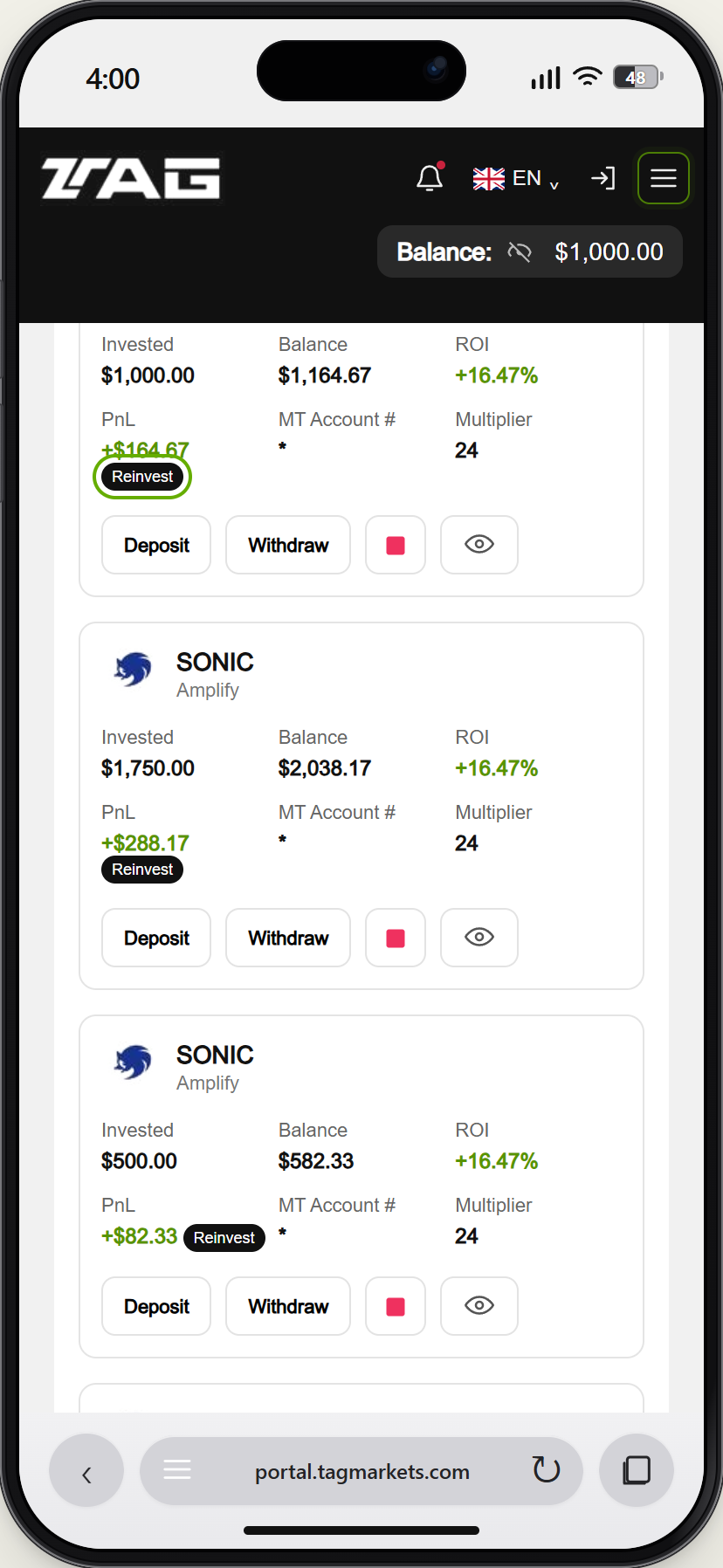
Open Reinvest on Sonic
Open Menu → CopyX → Follower Hub → Strategies. Find your Sonic account and choose Reinvest. Use Deposit instead if you want to add wallet funds.
Demo example · Enlarge screenshot Step 02
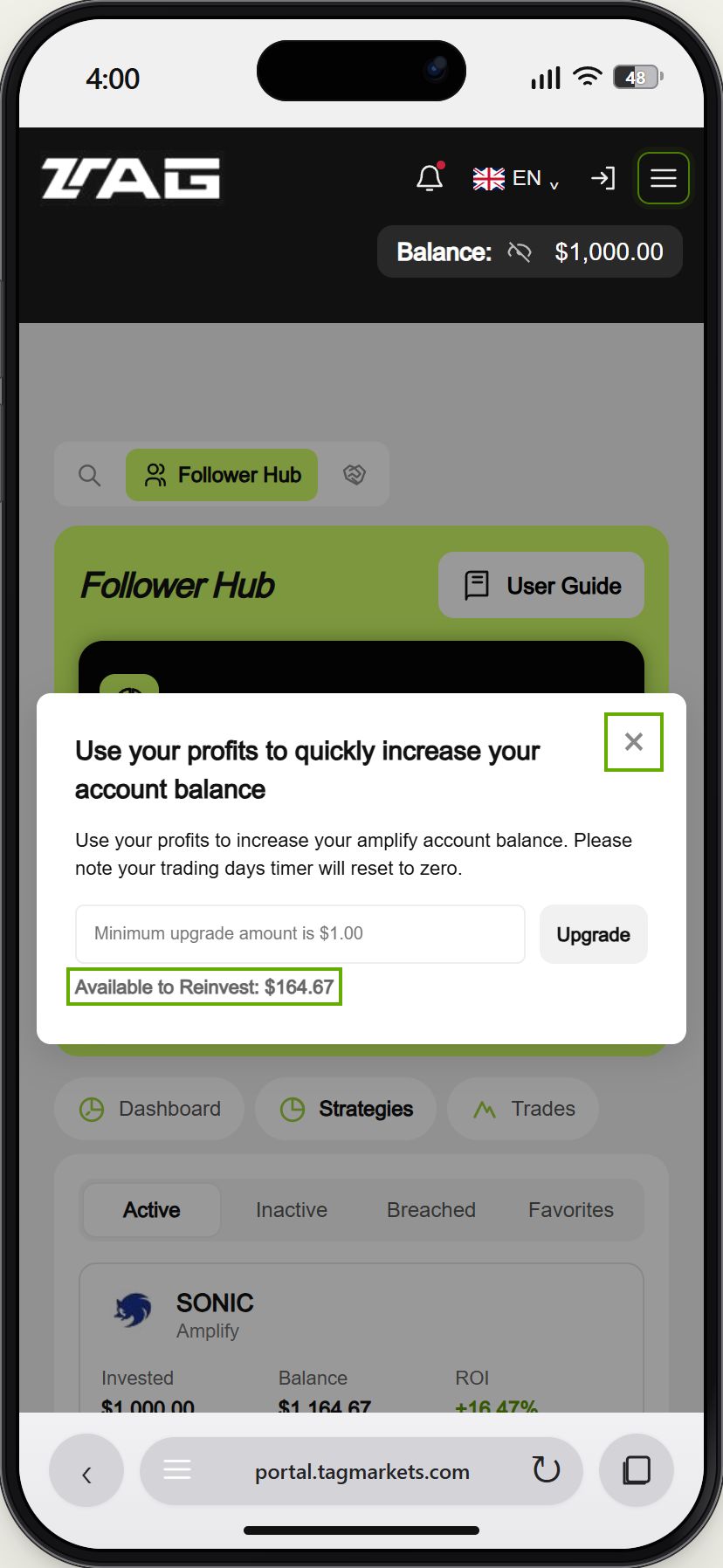
Read the available amount and timer
Check Available to Reinvest and the timer notice. The form shown warns that the trading-days timer resets to zero when upgrading; review the conditions shown for your own account.
Demo example · Enlarge screenshot Step 03
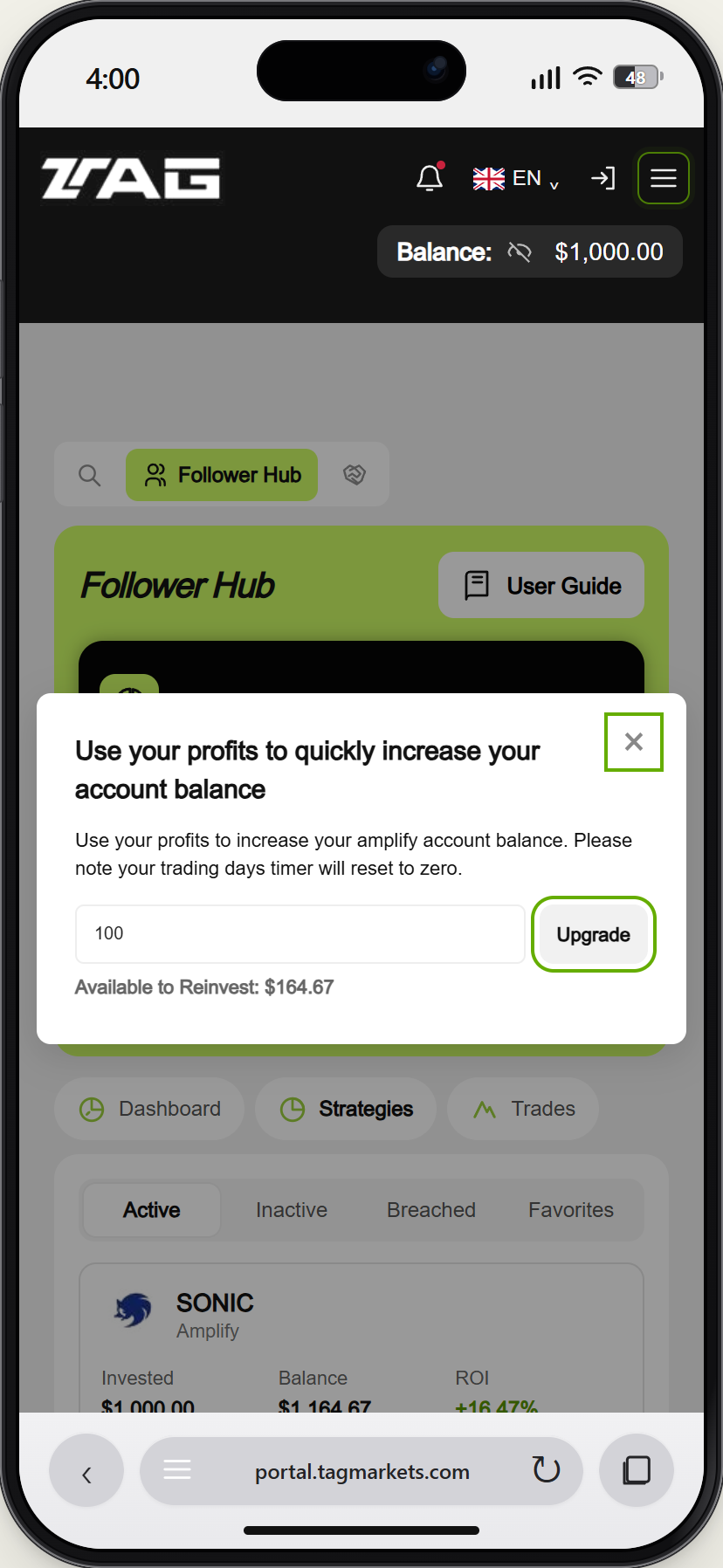
Review Upgrade
Enter no more than the available profits, review the amount and select Upgrade when ready. The tutorial only previews this action: it does not change the demo balance or timer.
Demo example · Enlarge screenshot
How do I reinvest my Sonic profits on CopyX?
In Follower Hub → Strategies, choose Reinvest on Sonic, check Available to Reinvest, enter an amount and review Upgrade. Reinvesting uses available profits rather than new funds from TAG Wallet.