
Guide / Screenshot guide
How to add a crypto wallet to TAG Markets
Open Tag Wallet → Your Crypto Wallets → Add a Crypto Wallet. Name the wallet, select the supported asset and network, enter your receiving address and save.
Updated 4 November 2026 · Screenshots from our interactive demo, with fictional account data. Use the options and conditions shown in your own account.
Before you start: Open your own receiving wallet so you can copy its address and check the asset and network.
Step 01
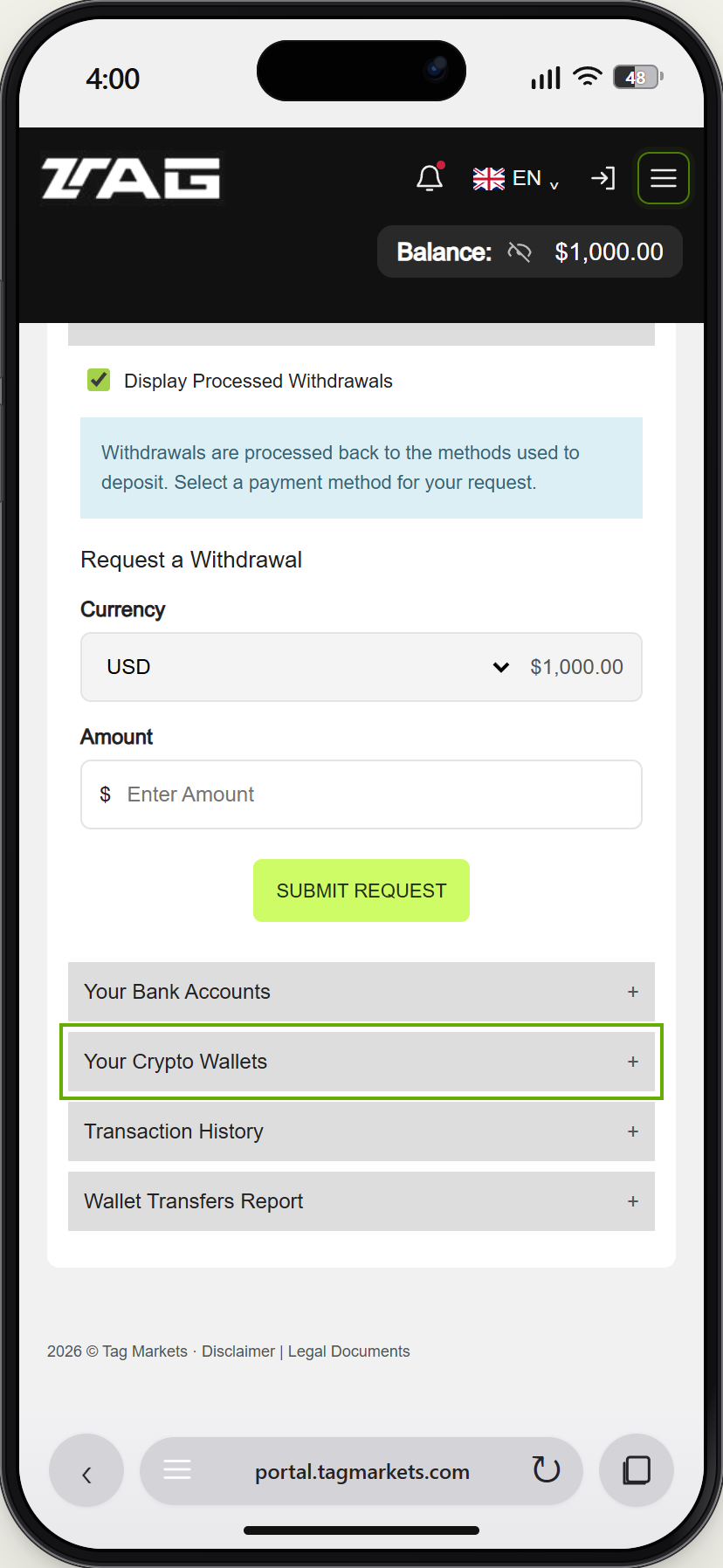
Find Your Crypto Wallets
Open Menu → Tag Wallet. In Banking Zone, expand Your Crypto Wallets and choose Add a Crypto Wallet.
Demo example · Enlarge screenshot Step 02
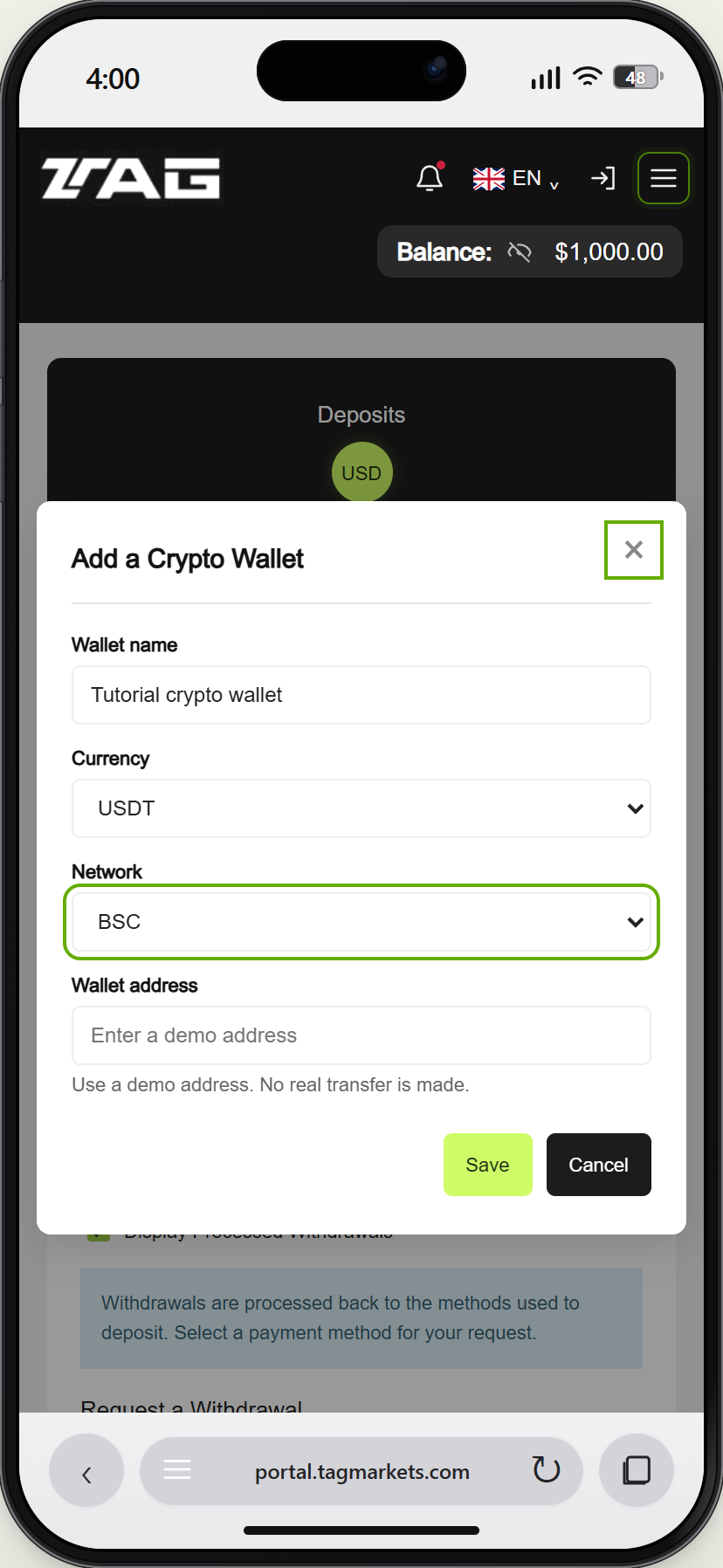
Name the wallet and check the network
Use a name you recognise. Check both currency and network against your receiving wallet. The demo illustrates USDT on BSC; use the options shown in your own account.
Demo example · Enlarge screenshot Step 03
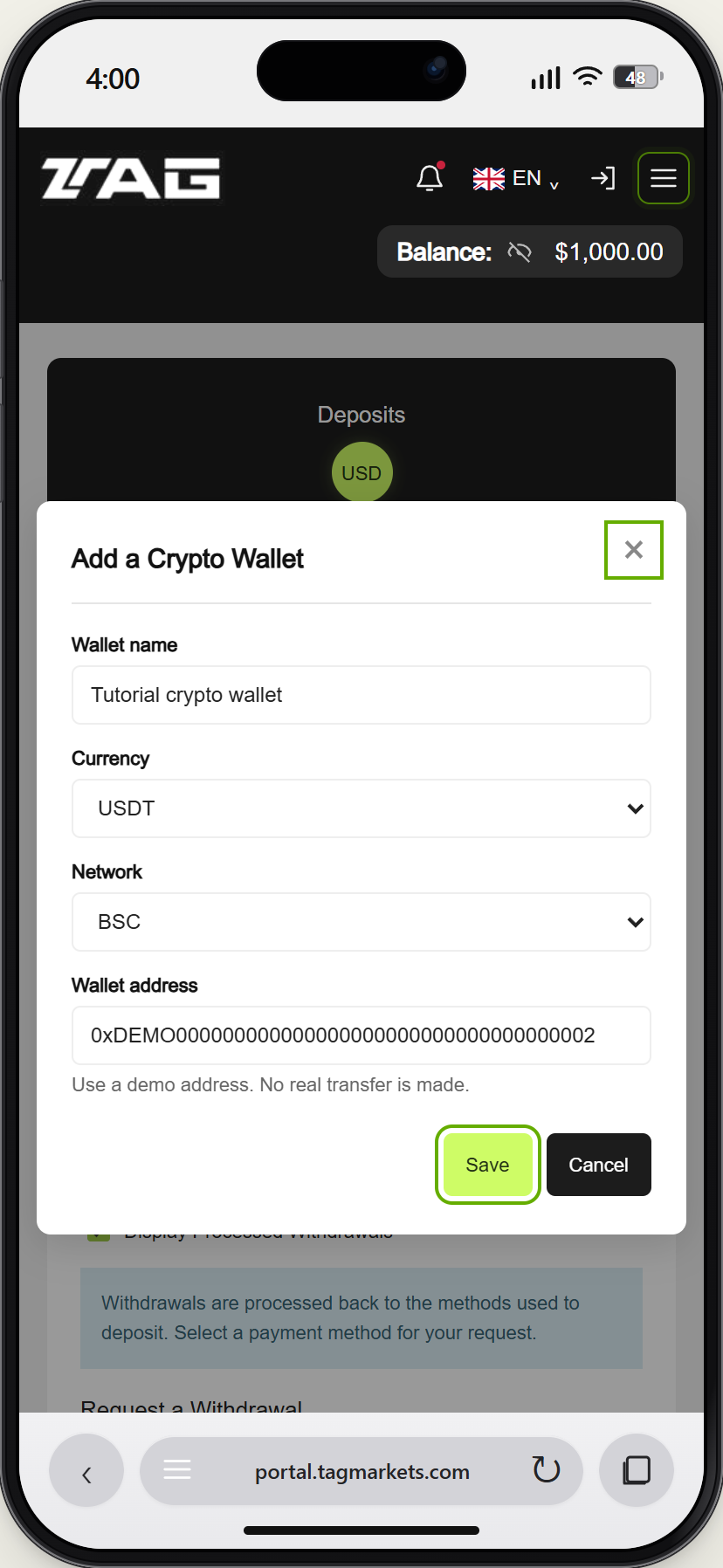
Add the address and save
Copy the receiving address from your own wallet and check it before saving. The 0xDEMO address in this screenshot is fictional and must not be used for a transfer. The saved wallet can then be selected as a withdrawal destination.
Demo example · Enlarge screenshot
How do I add a crypto wallet to TAG Markets?
Open Tag Wallet → Your Crypto Wallets → Add a Crypto Wallet. Name the wallet, select the supported asset and network, enter your receiving address and save.